Chapter 4
Generating Sound and Music
การสร้างเสียงออกลำโพง
- The micro:bit V2 has a small speaker on the board. No extra wires are needed.
- All the sound blocks live in the
Musicgroup: notes, melodies, tempo and ready-made sound effects.
4.1 Sound Blocks & Speaker Control คำสั่งที่เกี่ยวข้องกับการสร้างเสียง
- Sound is air that vibrates. A higher pitch means faster vibrations.
- The processor makes an on/off signal (PWM) and the speaker shakes in time with it.
Speaker on or off, and which pin
The five blocks บล็อกคำสั่งเสียง
| MakeCode Block | What it does |
|---|---|
play melody [notes] at tempo [120] (bpm) |
|
set built-in speaker to [ON/OFF] |
|
play sound [giggle] until done |
|
play sound [mysterious] |
|
set audio pin [P0] |
|
The Melody Editor grid
- Click a square to place a note. Click it again to remove it.
- Notes are coloured by pitch, so you can see the tune go up and down.
4.1 Controlling Sound with Switches ควบคุมการเล่นเสียงด้วยสวิตช์
- The board has two push switches, button A and button B.
- Here each button plays the same two sounds with
play sound, in two different ways. - A waits for the first sound to finish. B runs them in the background, at once.
Step-by-Step Exercise
- Step 1 — Drag on button: take
on button [A] pressedfrom theInputgroup. - Step 2 — Duplicate: right-click it, choose Duplicate, and change the new one to button B.
- Step 3 — Add sounds to A: drag two
play soundblocks fromMusicinto button A and use the until done version for both:play sound mysterious until done play sound happy until done - Step 4 — Add sounds to B: do the same in button B with the plain (background) version:
play sound mysterious play sound happy
Behavior Comparison
- Press A: the first sound finishes, then the second plays. You hear them one after the other.
- Press B: both play at the same moment, like a synthetic robot voice.
Run it here: press A, then press B
- Press A and listen. Then press B and compare.
- A waits for each sound to finish. B starts both at once, so they collide into the robot noise.
💻 4.1 until done versus in the background — the same two sounds, two results
on button A pressed
play sound mysterious until done
play sound happy until done
on button B pressed
play sound mysterious
play sound happy
See it in JavaScript
input.onButtonPressed(Button.A, function () {
	music.play(music.builtinPlayableSoundEffect(soundExpression.mysterious), music.PlaybackMode.UntilDone)
	music.play(music.builtinPlayableSoundEffect(soundExpression.happy), music.PlaybackMode.UntilDone)
})
input.onButtonPressed(Button.B, function () {
	music.play(music.builtinPlayableSoundEffect(soundExpression.mysterious), music.PlaybackMode.InBackground)
	music.play(music.builtinPlayableSoundEffect(soundExpression.happy), music.PlaybackMode.InBackground)
})4.2 Multiple Sound Variations & Themes การสร้างเสียงหลายรูปแบบ
- These programs play music when you press A, B, A+B, or shake the board.
- They work on both micro:bit V1 and V2.
Before the tunes: notes and tempo โน้ตและจังหวะ
set tempo to (bpm) 120changes the length of every beat after it.restis a silent gap with the same beat lengths.
1. Star Wars Opening Theme @ 120 BPM (button A)
- Press A to play the Star Wars theme at 120 bpm.
- The
repeat 4 timesblock plays the whole tune 4 times.
💻 4.2 (1) Star Wars opening theme at 120 bpm — button A
on button A pressed
repeat 4 times
set tempo to (bpm) 120
play tone Middle G for 1/4 beat
rest (ms) 1/8 beat
play tone Middle G for 1/4 beat
rest (ms) 1/8 beat
play tone Middle G for 1/4 beat
rest (ms) 1/8 beat
play tone Middle C for 1 beat
play tone Middle G for 1 beat
play tone Middle F for 1/4 beat
rest (ms) 1/8 beat
play tone Middle E for 1/4 beat
rest (ms) 1/8 beat
play tone Middle D for 1/4 beat
play tone High C for 1 beat
play tone Middle G for 1 beat
play tone Middle F for 1/4 beat
rest (ms) 1/8 beat
play tone Middle E for 1/4 beat
rest (ms) 1/8 beat
play tone Middle D for 1/4 beat
play tone High C for 1 beat
play tone Middle G for 1 beat
play tone Middle F for 1/4 beat
rest (ms) 1/8 beat
play tone Middle E for 1/4 beat
rest (ms) 1/8 beat
play tone Middle F for 1/4 beat
rest (ms) 1/8 beat
play tone Middle D for 1 beat
play tone Middle D for 1 beat
See it in JavaScript
input.onButtonPressed(Button.A, function () {
	for (let i = 0; i < 4; i++) {
		music.setTempo(120)
		music.playTone(Note.G, music.beat(BeatFraction.Quarter))
		music.rest(music.beat(BeatFraction.Eighth))
		music.playTone(Note.G, music.beat(BeatFraction.Quarter))
		music.rest(music.beat(BeatFraction.Eighth))
		music.playTone(Note.G, music.beat(BeatFraction.Quarter))
		music.rest(music.beat(BeatFraction.Eighth))
		music.playTone(Note.C, music.beat(BeatFraction.Whole))
		music.playTone(Note.G, music.beat(BeatFraction.Whole))
		music.playTone(Note.F, music.beat(BeatFraction.Quarter))
		music.rest(music.beat(BeatFraction.Eighth))
		music.playTone(Note.E, music.beat(BeatFraction.Quarter))
		music.rest(music.beat(BeatFraction.Eighth))
		music.playTone(Note.D, music.beat(BeatFraction.Quarter))
		music.playTone(Note.C5, music.beat(BeatFraction.Whole))
		music.playTone(Note.G, music.beat(BeatFraction.Whole))
		music.playTone(Note.F, music.beat(BeatFraction.Quarter))
		music.rest(music.beat(BeatFraction.Eighth))
		music.playTone(Note.E, music.beat(BeatFraction.Quarter))
		music.rest(music.beat(BeatFraction.Eighth))
		music.playTone(Note.D, music.beat(BeatFraction.Quarter))
		music.playTone(Note.C5, music.beat(BeatFraction.Whole))
		music.playTone(Note.G, music.beat(BeatFraction.Whole))
		music.playTone(Note.F, music.beat(BeatFraction.Quarter))
		music.rest(music.beat(BeatFraction.Eighth))
		music.playTone(Note.E, music.beat(BeatFraction.Quarter))
		music.rest(music.beat(BeatFraction.Eighth))
		music.playTone(Note.F, music.beat(BeatFraction.Quarter))
		music.rest(music.beat(BeatFraction.Eighth))
		music.playTone(Note.D, music.beat(BeatFraction.Whole))
		music.playTone(Note.D, music.beat(BeatFraction.Whole))
	}
})
2. Wedding March (button B)
- Press B to play one of the ready-made melodies, here wedding.
- It plays once.
💻 4.2 (2) The wedding march from the melody list — button B
on button B pressed
start melody wedding repeating once
See it in JavaScript
input.onButtonPressed(Button.B, function () {
	music.startMelody(music.builtInMelody(Melodies.Wedding), MelodyOptions.Once)
})
3. Ascending & Descending Scales (A + B together)
- Press A and B together to play
play melodytwice. - First the notes go from low to high, then from high to low.
💻 4.2 (3) Up the scale and back down — buttons A + B together
on button A+B pressed
play melody C D E F G A B C5 at tempo 120 (bpm)
play melody C5 B A G F E D C at tempo 120 (bpm)
See it in JavaScript
input.onButtonPressed(Button.AB, function () {
	music.playMelody("C D E F G A B C5", 120)
	music.playMelody("C5 B A G F E D C", 120)
})
4. Pink Panther Theme (on shake)
- Shake the board to play the Pink Panther theme at 120 bpm.
on shakeis an event: the code inside waits until the board is shaken.
💻 4.2 (4) The Pink Panther theme — shake the board
on shake
set tempo to (bpm) 120
play tone Middle D# for 1/4 beat
play tone Middle E for 1/4 beat
rest (ms) 1 beat
play tone Middle F# for 1/4 beat
play tone Middle G for 1/4 beat
rest (ms) 1 beat
play tone Middle D# for 1/4 beat
play tone Middle E for 1/4 beat
rest (ms) 1/8 beat
play tone Middle F# for 1/4 beat
play tone Middle G for 1/4 beat
rest (ms) 1/8 beat
play tone High C for 1/4 beat
play tone Middle B for 1/4 beat
rest (ms) 1/8 beat
play tone Middle D# for 1/4 beat
play tone Middle E for 1/4 beat
rest (ms) 1/8 beat
play tone Middle B for 1/4 beat
play tone Middle A# for 1 beat
rest (ms) 1 beat
play tone Middle A for 1/8 beat
play tone Middle G for 1/8 beat
play tone Middle E for 1/8 beat
play tone Middle D for 1/8 beat
play tone Middle E for 1 beat
See it in JavaScript
input.onGesture(Gesture.Shake, function () {
	music.setTempo(120)
	music.playTone(Note.DSharp, music.beat(BeatFraction.Quarter))
	music.playTone(Note.E, music.beat(BeatFraction.Quarter))
	music.rest(music.beat(BeatFraction.Whole))
	music.playTone(Note.FSharp, music.beat(BeatFraction.Quarter))
	music.playTone(Note.G, music.beat(BeatFraction.Quarter))
	music.rest(music.beat(BeatFraction.Whole))
	music.playTone(Note.DSharp, music.beat(BeatFraction.Quarter))
	music.playTone(Note.E, music.beat(BeatFraction.Quarter))
	music.rest(music.beat(BeatFraction.Eighth))
	music.playTone(Note.FSharp, music.beat(BeatFraction.Quarter))
	music.playTone(Note.G, music.beat(BeatFraction.Quarter))
	music.rest(music.beat(BeatFraction.Eighth))
	music.playTone(Note.C5, music.beat(BeatFraction.Quarter))
	music.playTone(Note.B, music.beat(BeatFraction.Quarter))
	music.rest(music.beat(BeatFraction.Eighth))
	music.playTone(Note.DSharp, music.beat(BeatFraction.Quarter))
	music.playTone(Note.E, music.beat(BeatFraction.Quarter))
	music.rest(music.beat(BeatFraction.Eighth))
	music.playTone(Note.B, music.beat(BeatFraction.Quarter))
	music.playTone(Note.ASharp, music.beat(BeatFraction.Whole))
	music.rest(music.beat(BeatFraction.Whole))
	music.playTone(Note.A, music.beat(BeatFraction.Sixteenth))
	music.playTone(Note.G, music.beat(BeatFraction.Sixteenth))
	music.playTone(Note.E, music.beat(BeatFraction.Sixteenth))
	music.playTone(Note.D, music.beat(BeatFraction.Sixteenth))
	music.playTone(Note.E, music.beat(BeatFraction.Whole))
})Interactive micro:bit V2 Audio Hardware Map
Hover over or tap any audio part on the real micro:bit V2 photo to see what it does.
micro:bit V2 Onboard Speaker & Audio Subsystem
Interactive Map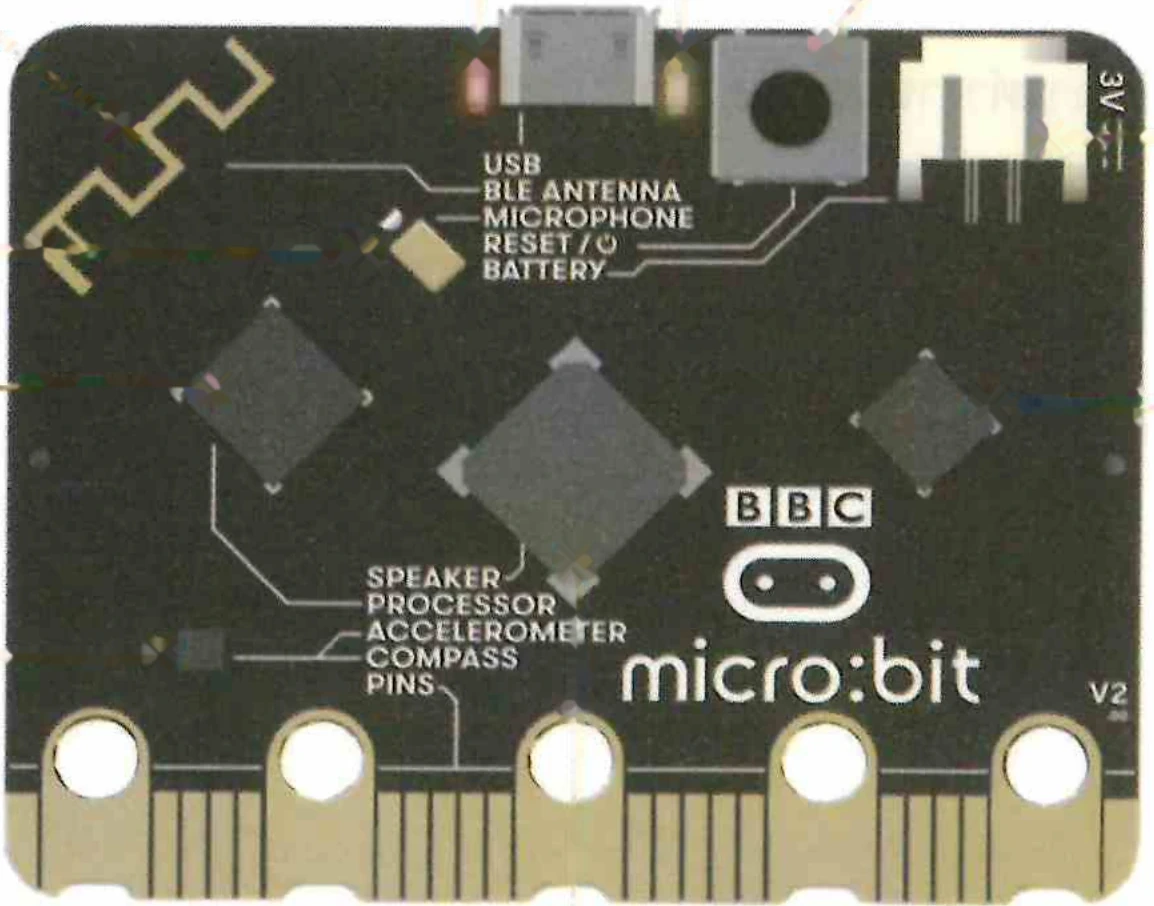
Hover or tap the Piezo Speaker, MEMS Mic, nRF52833 Synthesizer, or Pin P0 to inspect audio components.
Chapter 4 Review & Self-Check
Check what you know about the built-in speaker, tempo, blocking vs non-blocking sounds and note scores.